
FROM OUR WORKSHOP · CANON · MEMORY CARDS
Canon G7 X Mark III: SD card error and slot replacement
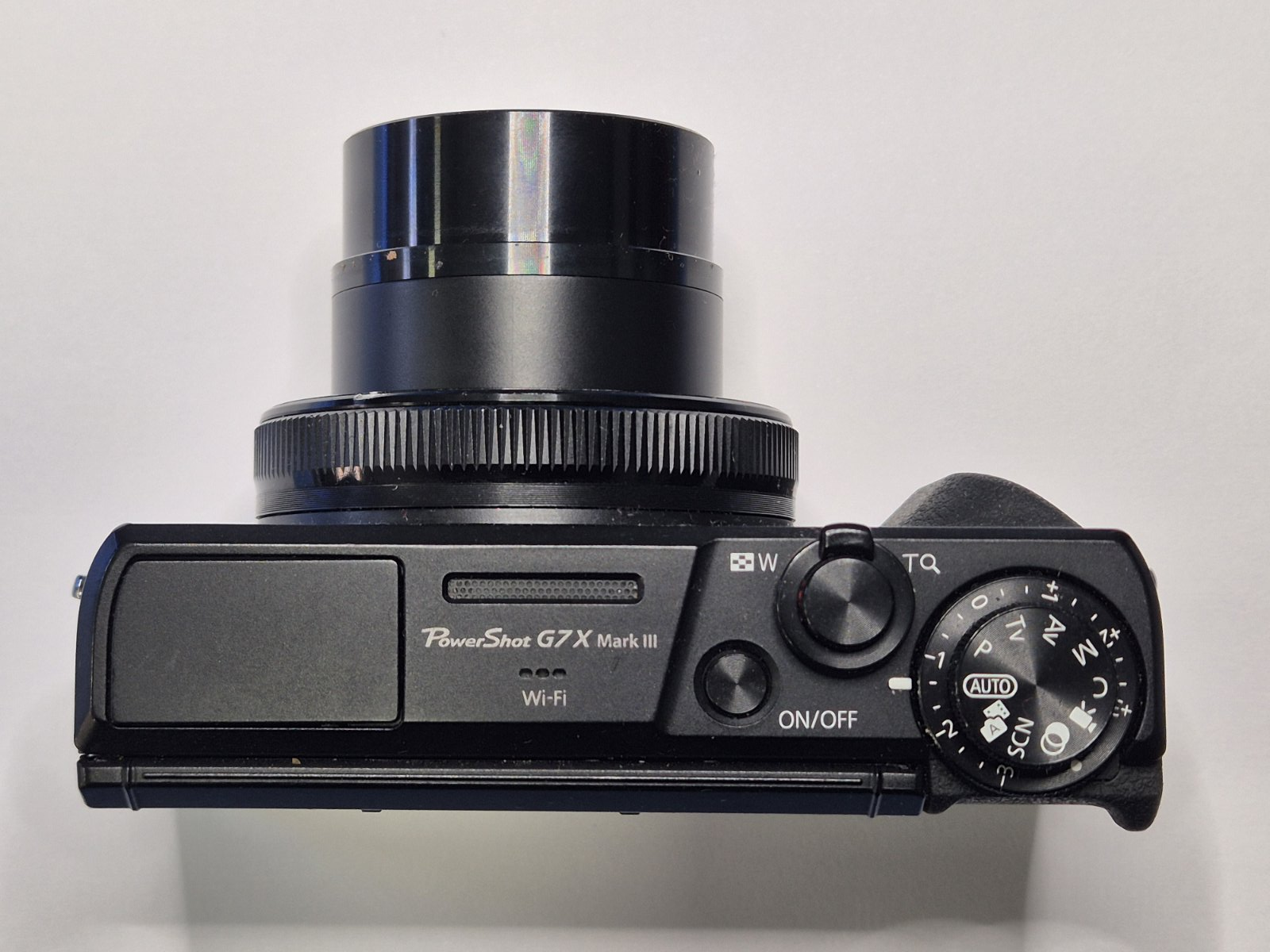
The card was unlocked and worked in a reader, yet the camera still reported write protection. On this Canon PowerShot G7 X Mark III, testing identified a fault in the SD slot, which we replaced.
What do the messages mean?
Memory card and slot issues are a recurring reason for camera inspections in our workshop, including Canon PowerShot G7 X Mark II and Mark III cameras. Similar messages do not mean that every camera has the same fault.
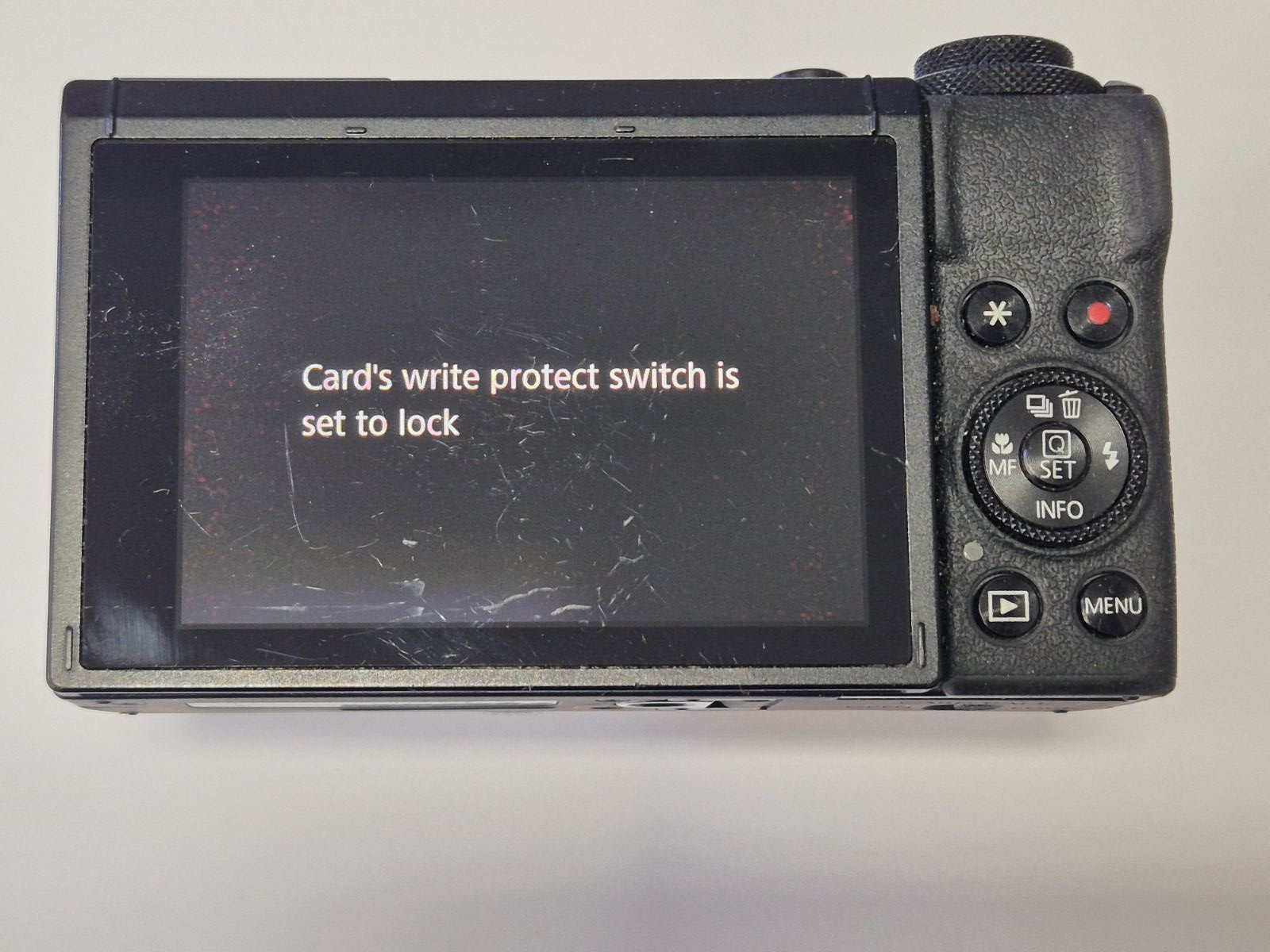
The photograph of this camera shows “Card’s write protect switch is set to lock”: the camera is detecting a state that prevents writing. A memory card error or a missing-card message may have a different cause, including the card, contacts, slot or camera electronics.
Checks before a repair
- Turn the camera off. Wait until writing has finished and the camera has shut down before opening the cover.
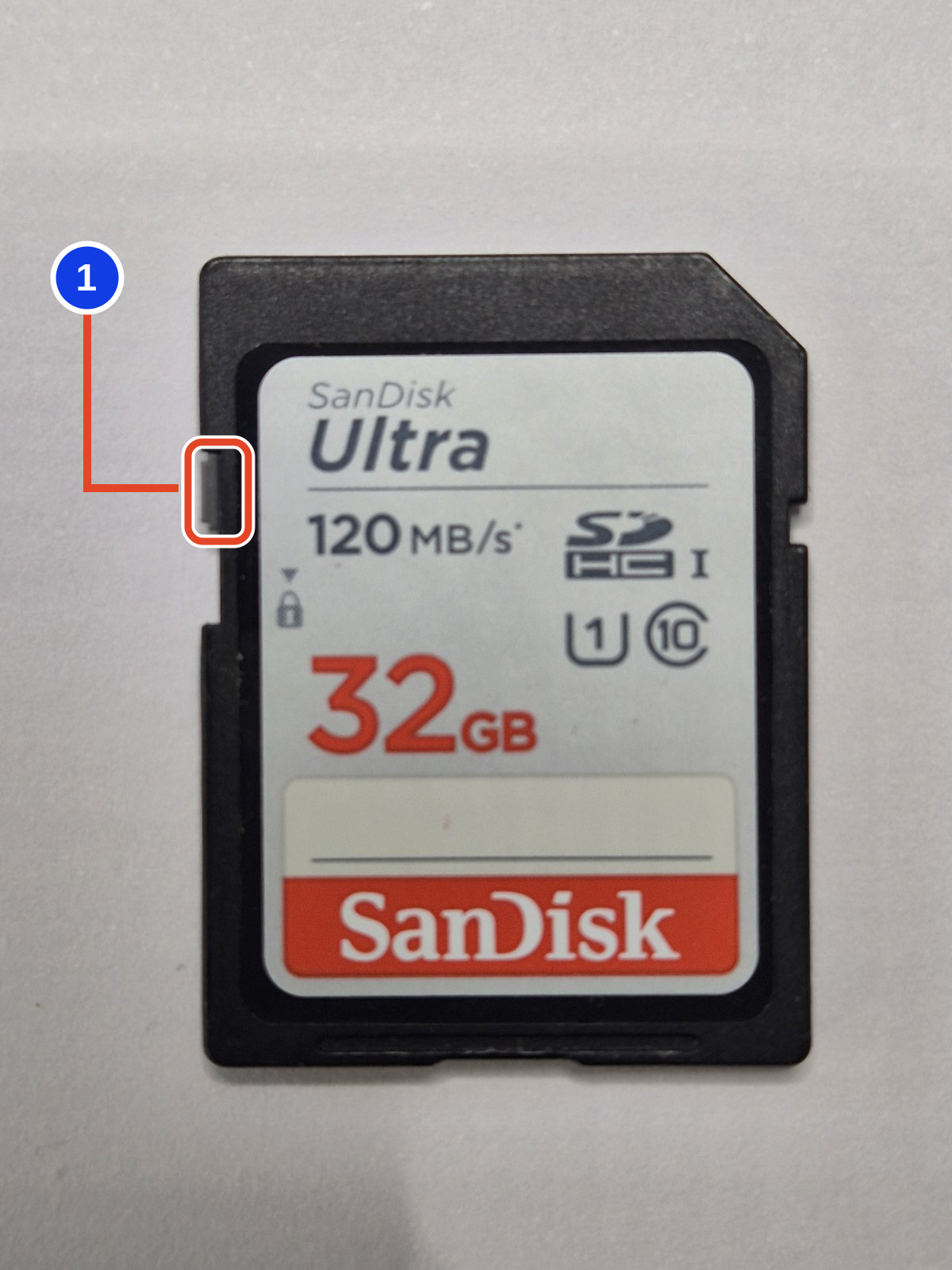
- Inspect the card. Do not insert a cracked card, a card with missing casing, or one with a missing or loose LOCK tab.
- Check the LOCK tab. With the card label facing you, the tab is on the left edge. Slide it upwards, away from the LOCK marking, to allow writing.
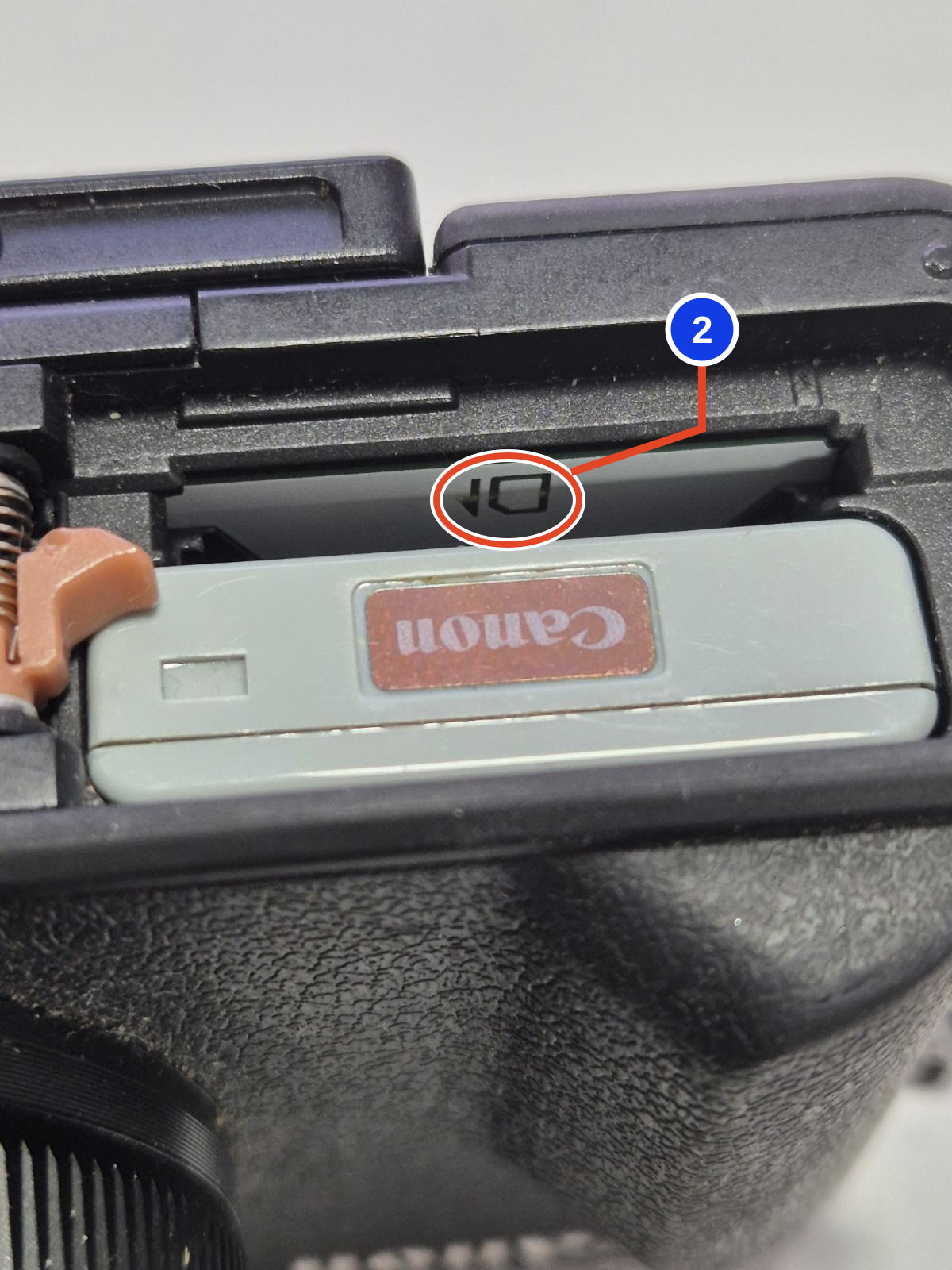
- Follow the compartment diagram. Match the card and its notched corner to the camera’s printed symbol. Insert it straight and gently until the retaining mechanism clicks. Stop if you feel unusual resistance.
- Try another working, compatible card. If the camera works with that card, the original needs further checking. If the problem persists, the camera needs inspection.
How we diagnosed this fault
In this case, the card had no visible physical damage and its LOCK tab was in the unlocked position. A separate USB SD reader check on a computer confirmed that the card worked in that reader. The camera nevertheless continued to display its write-protect warning.
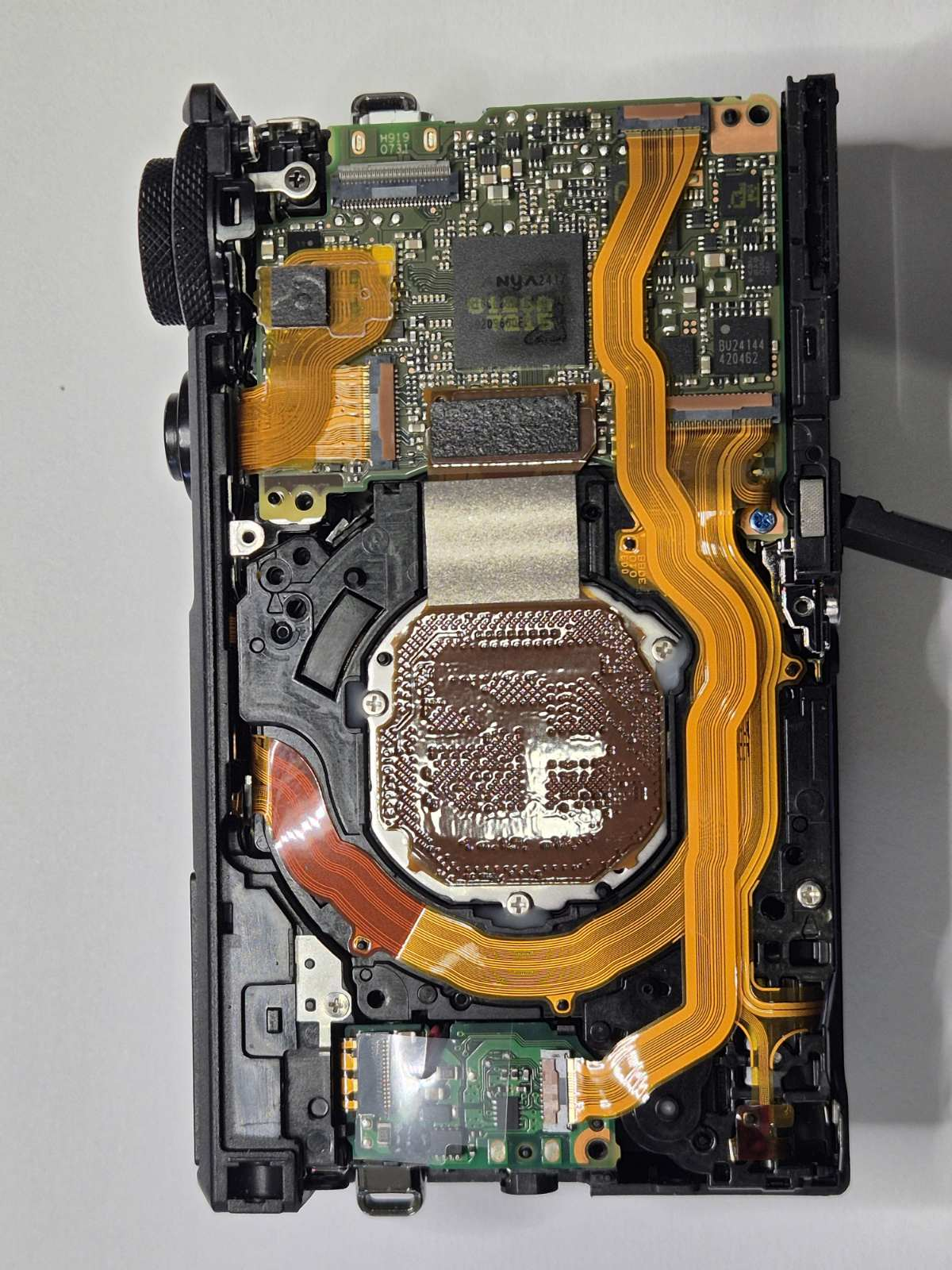
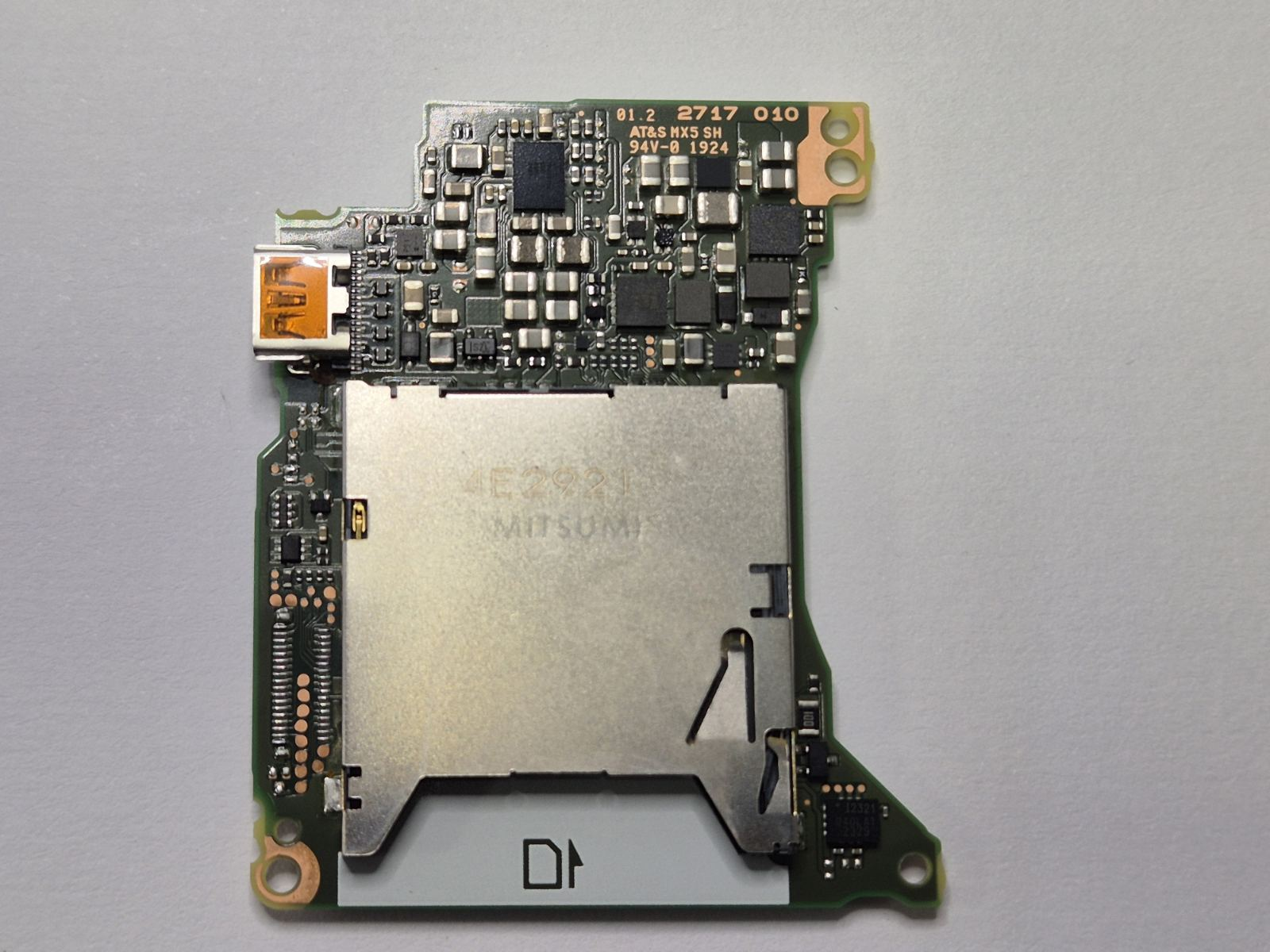
We opened the camera and removed the main board carrying the SD slot — the receptacle and contacts for the memory card. Using measuring equipment, we checked the contacts that detect card insertion and the write-protect state. Faulty contact operation was confirmed, so the slot needed replacement.
The SD card’s LOCK tab is a mechanical indicator read by the device. A camera can therefore report a locked card with the tab correctly positioned if the slot’s detection mechanism is faulty. This was the finding in this repair, not a conclusion that can be drawn from the screen message alone.
Slot replacement and final testing
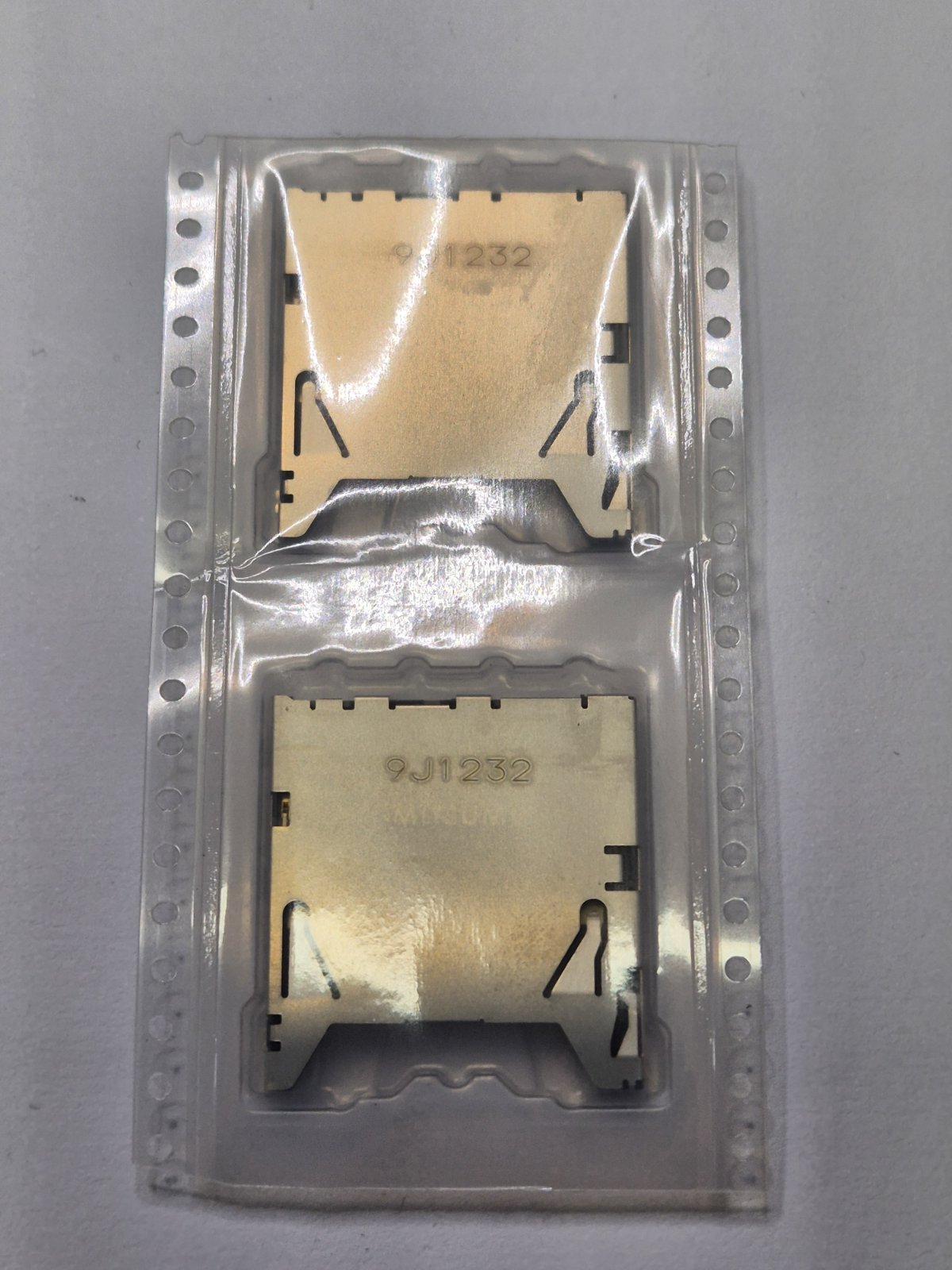
We removed the faulty slot using controlled heating and desoldering, then fitted and soldered a new SD slot. This work requires suitable workshop equipment and experience with densely populated circuit boards. Tracks, solder pads and nearby components must be protected; uncontrolled heating or trying to bend contacts through the slot opening is not an appropriate substitute.
If the fault is confined to the slot and the board is repairable, the slot itself can be replaced. Additional board or electronic damage may change the work required, which must be established by inspecting the individual camera.
After reassembly, we used the same card supplied with the camera to check photo and video writing, playback and deletion. The warning no longer appeared, and card operation was normal.
Final checks also covered buttons and controls, flash, microphone, aperture and focus. We cleaned dust and dirt from the housing and the lens front element. Following these checks, the camera was ready for normal use.
Looking after the card and slot
Change cards gently, without side pressure or force. If a card will not enter, stay in place or release normally, stop trying and contact a repair service. Do not insert pins or other tools, tape the card or attempt to bypass the slot’s protection mechanism.
Slot damage can result from incorrect insertion, damaged cards or mechanical wear. Without additional evidence, the event that caused an individual fault cannot be stated with certainty.
Some Sony cameras and camcorders use combined slots for SD and Memory Stick PRO Duo cards. Insertion orientation depends on the model and card type: follow the symbol beside the slot and the device’s own manual. Do not assume that all cards are inserted in the same orientation.
Frequently asked questions
Does a write-protect warning mean the SD slot must be replaced?
No. First check the LOCK tab, the condition of the card and operation with another working compatible card. Inspection and measurements are needed to confirm a slot fault.
The card works on my computer but not in the camera. What does that mean?
It is useful diagnostic information but does not prove a slot fault by itself. A reader and camera may detect card status differently; both the card and camera need checking.
Does the entire main board need replacement?
In this case we successfully replaced only the SD slot. Whether that is possible depends on the board condition and any additional damage.
Does the advice also apply to the Canon G7 X Mark II?
Checking the LOCK tab, card condition and insertion orientation also applies to the Mark II. Construction and repair procedures vary between models; this article documents a specific Mark III repair.
What should I bring for inspection?
Bring the camera and the card that triggers the error, preferably with a charged battery. Back up important files first if they can be safely copied. Note the exact message and when it appears.
How much does SD slot replacement cost?
The cost depends on the model, availability of the correct slot and board condition. Send the model and symptoms for an initial assessment; the final work and price are agreed after inspection.
Manual and further information
The findings, repair and results describe this specific BeoDigital workshop case. Official Canon guidance was also consulted for the initial user checks:
- Canon PowerShot G7 X Mark III — Advanced User Guide (PDF, pp. 23–24)
- Canon support: card write-protect warning
This is one repair case; the same symptom on another device may have a different cause.